Purpose
This workflow is used when an existing inpatient is discharged from an acute encounter, then readmitted to the same care site for St. Peter’s Health Inpatient Hospice (GIP) care. This is a discharge-to-readmit within the same facility — not a transfer to an outside hospice.
See “Discharge-Readmit to Inpatient Hospice.docx” in the Hospitalist Shared Drive for more information.
0. Referral & GIP Determination
-
Notify Case Management as soon as hospice is decided upon
- Contact CM to reach out to family for hospice service selection
- CM will notify hospice of consultation and we need to place the order in EPIC
- EPIC workflow: Discharge tab -> Order Reconciliation ->
"Amb ref to Hospice"Internal Referralif for SPH HospiceOutgoing Referralif for another group (e.g. Headwaters, Enhabit, etc)
- EPIC workflow: Discharge tab -> Order Reconciliation ->
-
If after hours or CM unavailable, call the desired Hospice Group directly
Hospice Services
SPH Hospice (main) (406) 444-2244 SPH Hospice RN (406) 465-1670 Headwaters Hospice (406) 422-0114 Enhabit (406) 443-4140 Stillwater Hospice (406) 916-4500
Link to original
-
Hospice will see the patient and send the attending an EPIC Chat with determination of GIP or not
-
Once hospice has given the OK, discharge/readmit to GIP as soon as possible — proceed to Part 1 below
- NOT needed if the patient isn’t yet admitted (e.g. in the ER or Direct Admit)
-
If not GIP appropriate, consider if this is an avoidable day while working with the patient, family, and CM to find a disposition for discharge
Part 1: Discharging Provider
1. Open the Discharge Navigator
Click the Discharge navigator and select Discharge – Readmit.
2. Order Reconciliation
Click Order Reconciliation and work through each step:
- ⚠️ Review Orders for Discharge-Readmit — review all active orders and mark them as addressed or continued
- Click “Don’t Order Unaddressed” for items that shouldn’t carry forward
- Click Find Unreviewed to locate any orders not yet reviewed
- Sort by Review status to ensure nothing is missed

- Reconcile Home Medications — continue, hold, or discontinue as appropriate
- Click “Don’t Order Unselected” for medications to be stopped
TIP
The Order Reconciliation screen mirrors the standard admission reconciliation workflow. The key difference is that orders are being transitioned from acute care to hospice care, so treatment-focused orders may need to be discontinued in favor of comfort-focused orders.
3. Place the Hospice Admission Order Set
In the Order Sets section, enter Hospice Admission Order Set (1249).
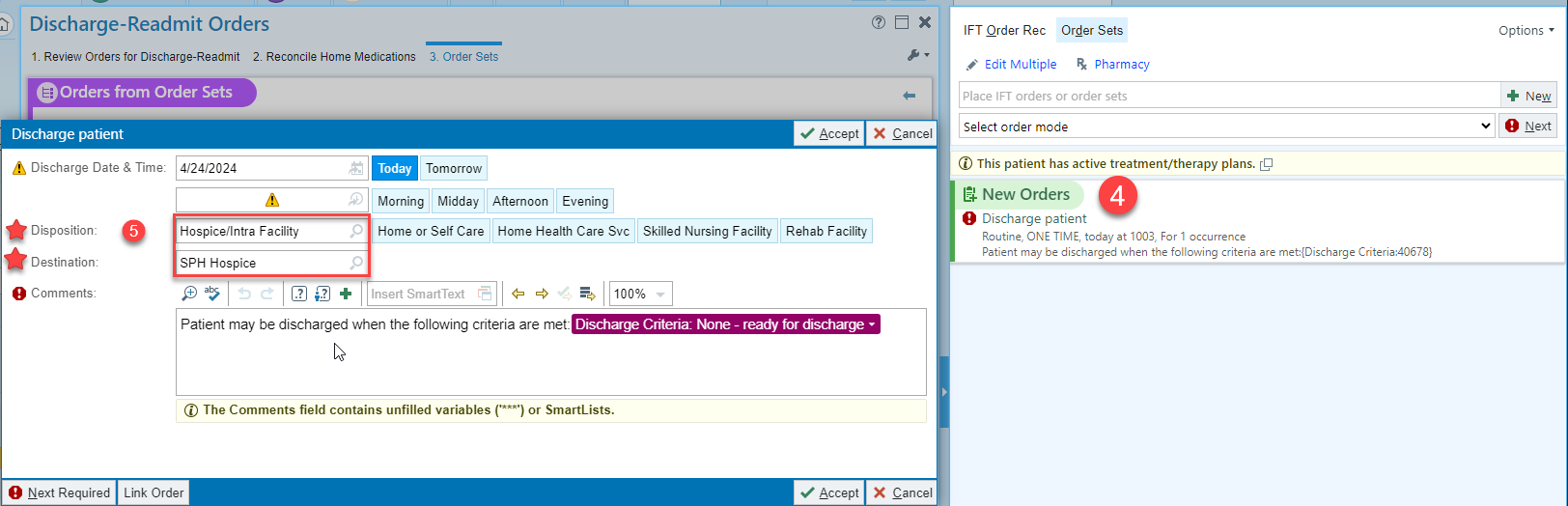
4. Complete the Discharge Patient Order
Click the Discharge Patient order in the Order Composer and complete all hard stops:
- Disposition: Click the spyglass 🔍 in the Disposition field → select Hospice/Intra Facility
- Destination: SPH Hospice
- Set the appropriate discharge date/time
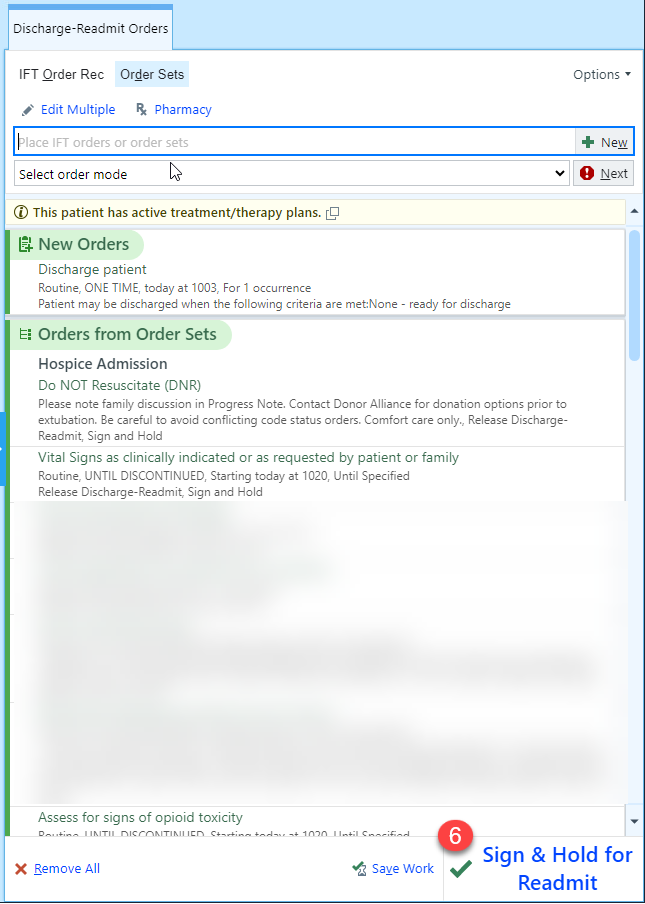
5. Sign & Hold for Readmit
Review all orders in the Orders Sidebar. Click Sign & Hold for Readmit to finalize the discharge and place the admission orders in a held/pending state for the admitting nurse to release.
Part 2: Admitting Provider
1. Open the Admission Navigator
Once the patient has been admitted by the ADT team and the nursing staff has released the signed-and-held orders, open the Admission Navigator to complete the provider workflow.
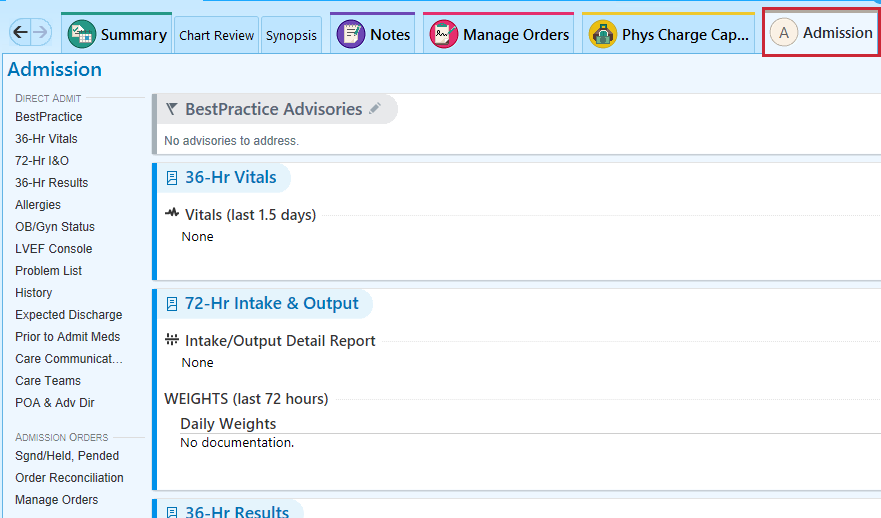
2. Complete the Admission Workflow
Work through the Admission Navigator sections
Ensure the “Admit to GIP” order from the Hospice Admission Order Set has been entered.
3. Notify Nursing for a New HAR
Call the patient’s primary nurse and ask them to get a new HAR from admitting — this creates a new chart for GIP status.
4. Admission H&P Requirements
WARNING
Admission to Inpatient Hospice Care (GIP) requires a brief H&P (History & Physical).
- If the patient had an inpatient H&P less than 30 days old, you may copy/paste it
- An H&P Update must be documented that supports the admission to hospice to maintain regulatory compliance
- The update should address: why acute care is no longer appropriate, the hospice-appropriate diagnosis, and the goals of care transition
Key EPIC Navigator Path
Hospice decided → Notify CM → Place "Amb ref to Hospice" order (Internal/Outgoing Referral)
  → Hospice EPIC Chat with GIP determination

Discharge Navigator → Discharge – Readmit
  → Order Reconciliation → Hospice Admission Order Set (1249)
  → Discharge Patient order (Disposition: Hospice/Intra Facility, Destination: SPH Hospice)
  → Sign & Hold for Readmit

→ ADT admits → Nursing releases orders → New HAR from admitting

Admission Navigator → Complete Admission workflow → H&P Update documenting hospice need